
Blender Asset Studio
Create and preview 3D assets with Orca and Blender.
Create assets in a dedicated workspace
Blender Asset Studio lets you ask Orca to create and refine 3D assets from chat. When you start it, Orca launches Blender in the background and connects to a private asset workspace for the current Godot project. This workspace is separate from any Blender document you already have open.
Asset Studio requires Orca 1.9.0 or later and Blender 5.2+. Get Orca from GitHub Releases; the Godot Asset Store may list an earlier version. Orca includes its constrained Blender connector, so this workflow does not require Blender Lab, an MCP server, or a separate Python installation.
Set up Asset Studio
- Open Blender Asset Studio.
In Godot, open Orca → Settings → Extensions, then click Start asset workspace. Orca checks its saved selection, Godot’s Blender setting, and known installation locations.
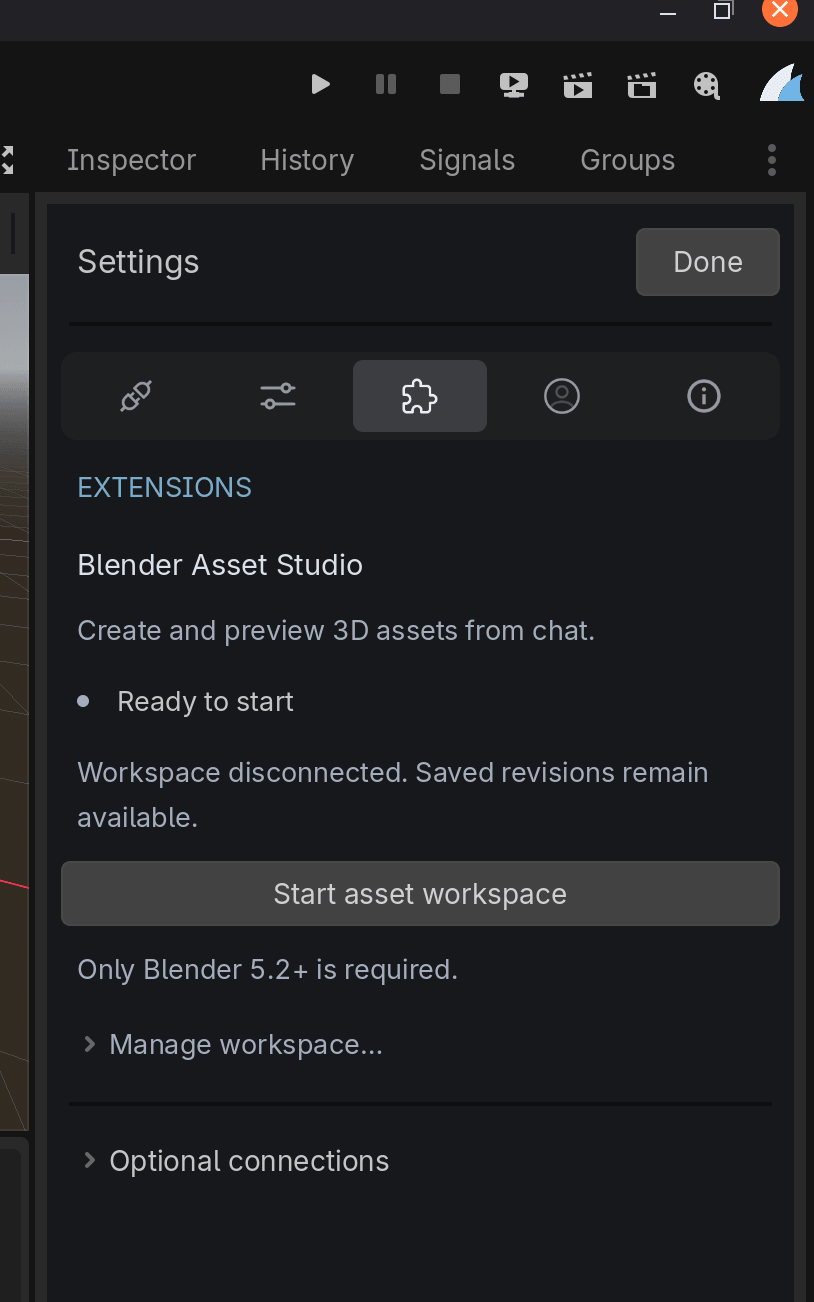
Start the dedicated asset workspace from Blender Asset Studio. - Let Orca find Blender.
Expand Manage workspace… to see the current selection and installation controls. If Orca finds one installation, it selects it and opens the startup confirmation. If it finds several, choose one. If none are found, use Choose Blender… to browse to a custom or portable installation, or download Blender and click Check for Blender to search again. After choosing from several results or browsing manually, click Start asset workspace to open the confirmation.
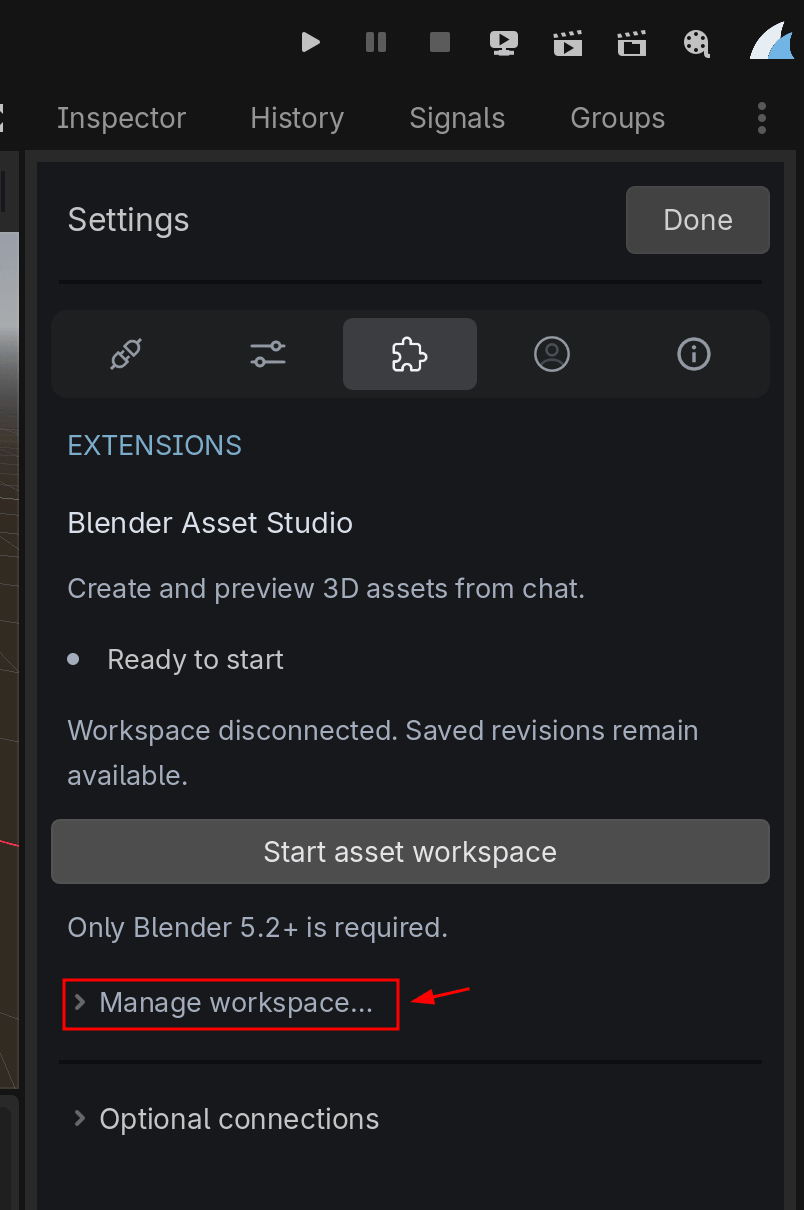
Expand Manage workspace… to show Blender setup controls. 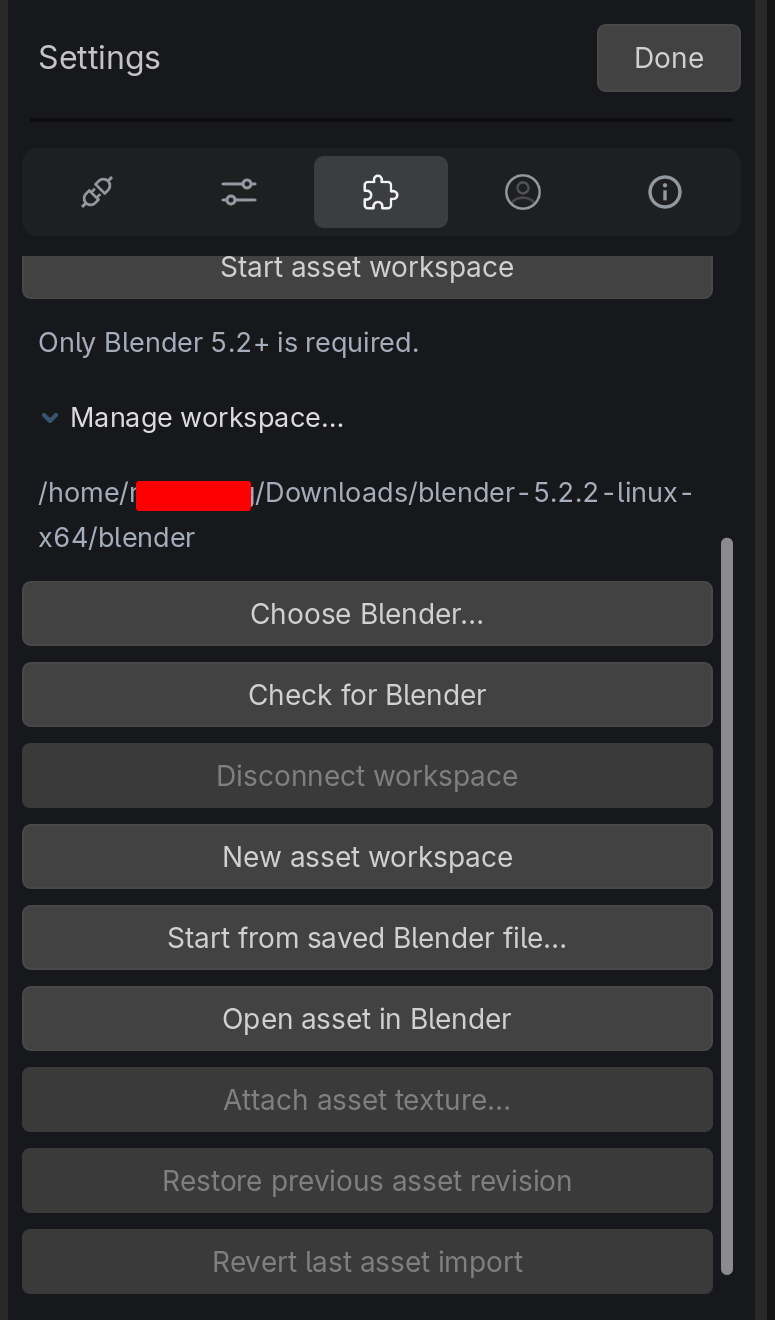
Choose an installation manually or check for Blender again. - Review and start the workspace. Check the selected Blender in the confirmation and click Start workspace. Orca launches Blender in the background; any Blender documents you already have open are left alone.
- Wait for Workspace ready. Orca validates the connection before reporting readiness. Click Back to chat; your chat draft is preserved.
Workspace ready confirms the Blender connection; it does not enable model Agent tools or grant editing permission. If Orca cannot call the Blender tools, check that you are in Work mode and that your selected model profile has Agent tools available. Orca Cloud may require the matching backend rollout and a refreshed model catalog.
Create and review
Choose Work mode and describe the asset and the changes you want. For example: “Create a low-poly sci-fi crate with a blue metal material, preview it, then export it for Godot.” Orca sends bounded, typed operations to Blender—rather than arbitrary generated Python—and shows the operation results in chat.
Review is the default for workspace changes. Use the proposal card to inspect and approve an edit. You can also inspect the current workspace or ask Orca for help with the available asset operations.
Preview your asset
Ask Orca to preview the asset. Use the preview card to orbit with left-drag, pan with Shift-left-drag or middle-drag, and zoom with the wheel or pinch. Choose Frame or press F to recenter, use Reset for the initial view, or expand the preview for a larger viewer.
Export to Godot
Ask Orca to export a GLB when the asset is ready. Orca stages and validates the export, then offers a separate reviewed import into your Godot project. Review the destination and existing-file state before approving. Importing does not automatically place the asset into a scene.
To place an imported asset, use the reviewed place action in a supported clean Node3D scene. Godot applies placement as one native Undo action and reports it as save pending; save the scene yourself when you are ready.
Workspace permissions
Workspace Auto apply is a separate, optional confirmation for Asset Studio. If enabled, it can cover help, inspection, editing, preview, and export; it does not authorize importing into Godot or placing an asset in a scene. A remembered choice is limited to the exact project. Script Auto apply and live Blender permissions do not grant workspace permission. See Auto apply scope and permissions for details.
Saved workspace revisions remain available if Blender disconnects. Use Manage workspace… for workspace recovery and other advanced controls.